
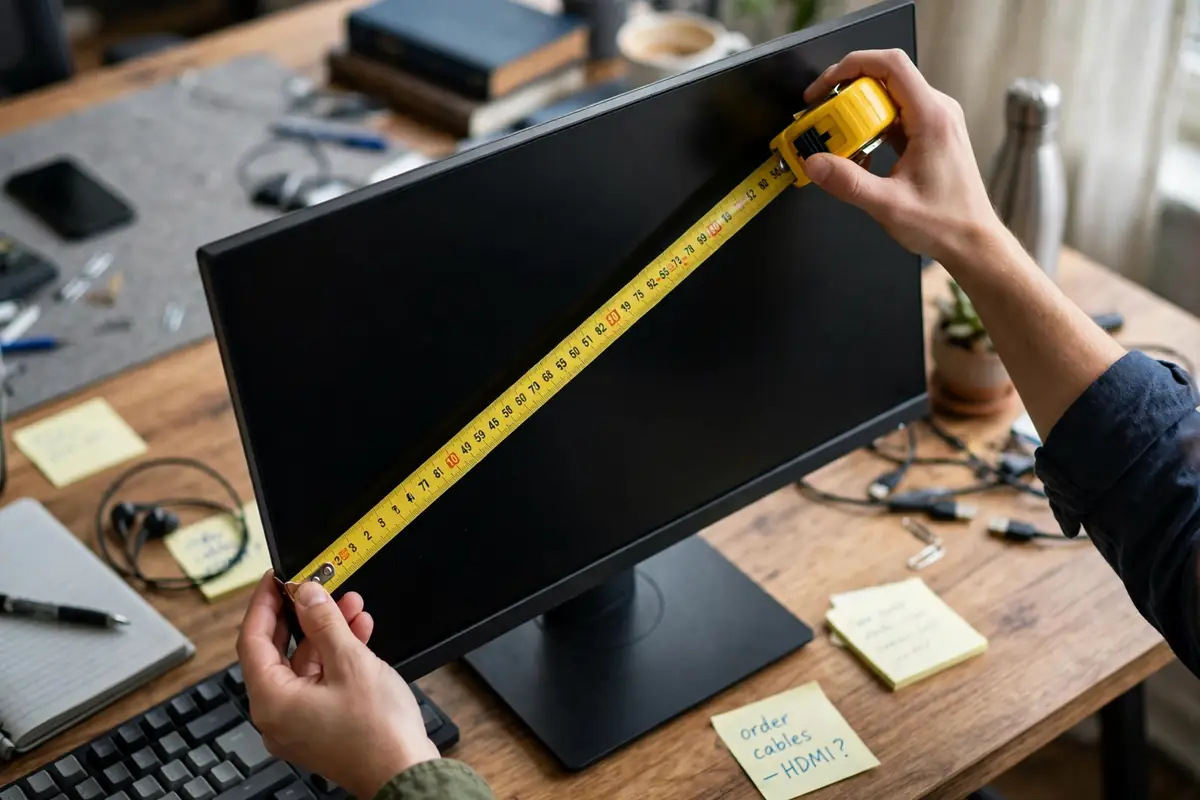
When a monitor is sold as “27-inch”, that number is not the width of the box, the stand or the whole unit on your desk. It is the diagonal measurement of the visible screen — and only the visible screen. Here is how to measure a computer monitor correctly, what else to measure, and how to find the size without a tape measure.
The Quick Answer
Monitor size is measured diagonally, in inches, from one corner of the viewable display area to the opposite corner — excluding the bezel (the frame around the screen). A measurement of 27 inches diagonally means you have a 27-inch monitor. One inch equals 2.54 centimetres, so 27 inches is about 68.6 cm.
How to Measure Monitor Size, Step by Step
- Switch the monitor off. A dark screen makes it much easier to see exactly where the lit display area ends and the bezel begins.
- Find the viewable corners. These are the corners of the actual picture area — not the outer plastic frame.
- Place a flexible tape measure at the bottom-left corner of the viewable area.
- Stretch it diagonally to the top-right corner of the viewable area, keeping the tape flat against the screen.
- Read the measurement in inches. That number is your monitor size. Round to the nearest whole inch: a reading of 26.8 or 27.2 inches both mean a 27-inch monitor.
If you do not have a tape measure, a piece of string works: hold it diagonally across the screen, mark the length, then measure the string against a ruler.
What About Curved Monitors?
The principle is the same, but the tape must follow the curve of the screen from corner to corner. Measuring in a straight line between the corners of a curved panel will give a shorter, inaccurate reading.
Measure Width, Height and Aspect Ratio Too
The diagonal alone does not tell you how a monitor will fit on your desk or what shape it is. Measure the width (left to right) and height (top to bottom) of the viewable area as well, then work out the aspect ratio by dividing width by height.
For example, a screen 20 inches wide and 11.25 inches tall gives 20 ÷ 11.25 = 1.78, which is a 16:9 aspect ratio. Common aspect ratios include:
- 16:9 — standard widescreen, the most common ratio
- 16:10 — slightly taller, popular for office work
- 21:9 — ultrawide, much wider than it is tall
- 4:3 — the older, squarer shape
For a given diagonal size, a wider ratio means a shorter screen: a 34-inch ultrawide is far wider but not much taller than a 27-inch 16:9 monitor.
Common Mistakes When Measuring
- Including the bezel. This is the most common error, and it can add an inch or more to your result.
- Measuring straight across. Width is not size — a 24-inch monitor is roughly 21 inches wide, not 24.
- Confusing size with resolution. Size is a physical measurement; resolution (for example, 1920 × 1080) is the number of pixels. A bigger screen does not automatically mean a sharper picture — that depends on pixel density.
How to Find Your Monitor Size Without Measuring
If you cannot measure the screen, check the model number printed on a label on the back of the monitor and search for it on the manufacturer’s website — the specifications will list the exact size. The model number is the reliable route: display settings in Windows or macOS show resolution, not physical size in inches, so they cannot answer this question.
As a rough guide, the most common desktop monitor sizes are 24 inches, 27 inches and 32 inches, with 34-inch ultrawides also popular for gaming and multitasking.
Frequently Asked Questions
How do you measure a computer monitor?
Measure diagonally across the viewable screen only, from one corner to the opposite corner, in inches. Do not include the bezel.
Is a 27-inch monitor 27 inches wide?
No. A 27-inch monitor measures 27 inches diagonally. A 16:9 27-inch screen is about 23.5 inches wide and 13.2 inches tall.
Do you include the bezel when measuring monitor size?
No. Advertised monitor sizes exclude the bezel. Include the bezel only when you need the monitor’s full outer dimensions — for example, to check whether it fits a mount or a desk space.
How do I check my monitor size in settings?
You cannot reliably do so: Windows and macOS display settings show resolution and refresh rate, not physical size. Use the model number on the back of the monitor and look up its specifications instead.
